
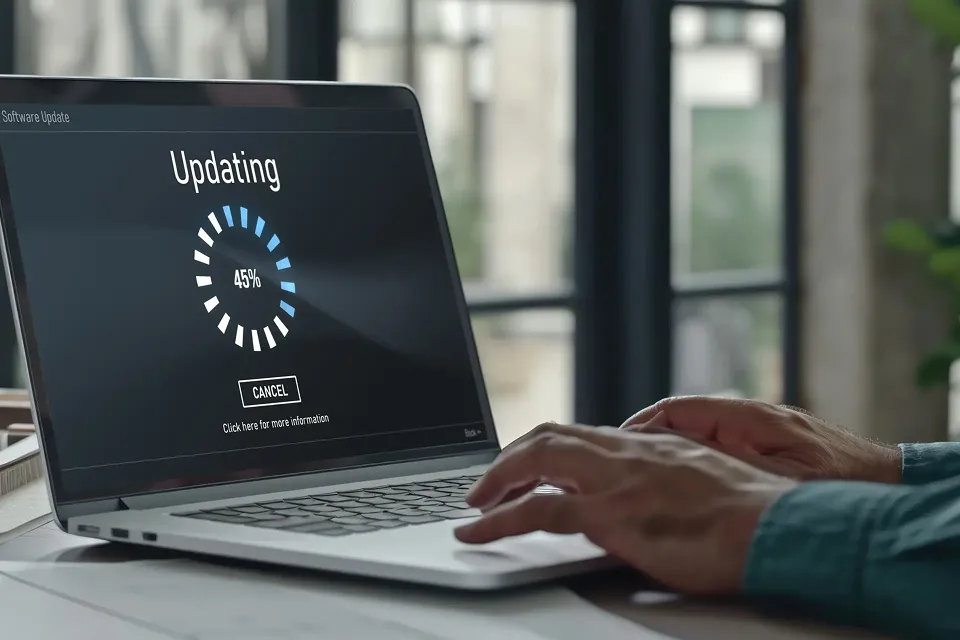
Why Laptop Running Slow After Windows 11 Update? And How to Fix It
If your laptop is running slow after a Windows 11 update, you’re facing a common but solvable problem. Many users expect improved speed and stability after upgrading, yet experience lag, delayed startup, overheating, or poor multitasking instead. This usually happens when a new operating system demands expose existing hardware and configuration limitations.
The key is understanding why performance drops and applying fixes that address the root cause, not surface-level symptoms.
Why Laptop Running Slow After Windows 11 Update
Windows 11 introduces advanced security layers, background services, and visual enhancements. While beneficial, these changes can overwhelm laptops that are not properly optimized.
Increased Background Processes
After the update, Windows 11 runs multiple background tasks such as indexing, cloud sync, security scans, and telemetry services. These processes continuously consume CPU and RAM, leaving fewer resources for everyday tasks.
Hardware Compatibility Limitations
Even laptops that technically support Windows 11 may not be optimized for it. Older processors, limited RAM, and traditional hard drives struggle to handle modern workloads, leading to noticeable slowdowns.
Driver and Firmware Conflicts
One of the most common problems after Windows 11 update is incompatible or outdated drivers. Graphics, chipset, storage, and network drivers may not sync correctly with the new OS, causing lag, freezing, or delayed responses.
Reasons for Slow Laptop Performance After the Update
Beyond the operating system itself, several underlying factors contribute to poor performance.
Too Many Startup Applications
Many applications automatically re-enable themselves after an update. This increases boot time and keeps the system under constant load, especially on laptops with limited memory.
Storage Bottlenecks
Laptops using HDDs experience significant delays with Windows 11. Even systems with SSDs may slow down due to low storage space, degraded performance, or firmware issues.
Overheating and Thermal Throttling
When a laptop overheats due to dust buildup or worn thermal paste, the system reduces performance to protect internal components. This makes the laptop feel slow even during basic tasks.
What to Do When Laptop Is Slowing Down After Windows 11 Update
Instead of trial-and-error fixes, follow a structured approach that delivers measurable improvements.
Optimize Startup and Background Apps
Disable unnecessary startup programs through Task Manager. This reduces boot time and immediately frees system resources.
Update Drivers Manually
Install the latest drivers directly from your laptop manufacturer’s website. This resolves compatibility issues that Windows Update often overlooks.
Adjust Windows 11 Performance Settings
Reduce visual effects, transparency, and animations. Switching to performance-focused settings improves responsiveness, especially on mid-range laptops.
If your laptop uses an HDD, upgrading to an SSD is the single most effective performance improvement. If an SSD is already installed, check storage health and ensure sufficient free space.
Run System and Malware Scans
Corrupted system files or hidden malware can silently degrade performance. A full system integrity check helps eliminate these hidden issues.
When Basic Fixes Are Not Enough
If your laptop is still running slow after Windows 11 update despite optimizations, deeper issues may be involved.
Insufficient RAM
Windows 11 requires more memory for smooth multitasking. Systems with low RAM often experience lag and app freezing.
CPU Bottlenecks
Older processors may struggle with Windows 11’s real-time background operations, causing frequent performance drops.
Cooling System Issues
Dust buildup, fan failure, or degraded thermal paste can severely limit performance. Even high-end systems slow down when cooling is compromised.
Incomplete or Corrupted Updates
Failed updates can leave behind residual files that continue to affect system performance until properly resolved.
Final Thoughts
A performance drop after upgrading to Windows 11 doesn’t mean your laptop is failing, it means it needs proper optimization. Understanding the real reasons for slow laptop performance helps you focus on fixes that actually work, instead of temporary tweaks.
If your laptop is still running slow after a Windows 11 update, this is the right time to book professional repair services. A focused diagnostic can quickly identify driver issues, storage limitations, overheating, or hardware bottlenecks and resolve them before they turn into costly problems.
Rather than continuing with trial-and-error fixes, book laptop repair services to restore speed, stability, and reliable performance.